
Knowing what permissions to give the user that will Bootstrap your CDK project local workspace and Deploy has been an evolving and often confusing discussion.
I remember when I was first getting started building AWS infrastructure a few years ago and was setting up my local dev environment with the Amazon Web Services Cloud Development Kit Command Line Interface (AWS CDK CLI). It was a mystery to me which permissions I needed and why there wasn’t just set of permissions that AWS provides out of the box.
One of the first things that you need to to get started with CDK before you even can have your first deployment is to “Bootstrap” your environment.
Want to skip directly to the IAM Policy Document for Bootstrapping? Search for “IAM Bootstrap Policy” in the article below.
What Does it Mean to Bootstrap?
At a high level, Bootstrapping is a way to prepare your AWS environment for CDK Stack deployments. This must be done before your first CDK deployment.
It provisions specific AWS resources that CDKs needs. You might hear there resources called bootstrap resources. CDK creates these resources through a CloudFormation Stack called CDKToolkit.
More specifically, these resources include:
1. IAM Roles which are used by CDK to perform deployments;
2. S3 Bucket to store CDK project files;
3. ECR Repo to store Docker images;
For more information on these roles, you can read the AWS docs here.
The act of bootstraping itself is straightforward with the AWS CDK CLI installed. It’s a simple command:
cdk bootstrap aws://{account_number}/{region}Example: cdk bootstrap aws://123456789012/us-west-2
The tricky part of executing this command is whether the IAM user that you have configured your security credentials in your local workspace with has the necessary permissions granted to it to bootstrap your environment.
What Does AWS Say?
The aws-cdk github docs specify that the cdk bootstrap command is recommended to be run by using Administrator Access privileges. I don’t fully agree with using Admin because it includes many more privileges than are necessary for bootstrapping. The docs do recommend using a Permissions Boundary, which is a pretty helpful guardrail for securing your IAM Policies.
They do recommend using a Permissions Boundary, which is a pretty helpful guardrail for securing your IAM Policies.
You can read my recent article about IAM Permissions Boundaries here.
I’m not going to show how to make a Permissions Boundary in this article, but we are going to practice the Principle of Least Privilege (sometimes abbreviated as PoLP). This essentially means only giving the minimum requires permissions to do the immediate job and nothing more. This also means removing permissions when they are no longer used.
What You’ll Get Out of This Article
In this article, I’ll give you the IAM Policy definition that I used today to bootstrap my environment, how to debug what permissions are missing, and add them to your IAM user if AWS adds more required permissions after this is published.
The debugging is good to know because it can be extended to any scenario where you or part of your application don’t have permissions to do something.
What I Recommend
With the PoLP in mind, I recommend using one IAM User for the Bootstrapping process, and then another User for general CDK development and deployments.
Why 2 users? Well if you look at the permissions required to bootstrap, you’ll see a big security issue in the iam:CreateRole and iam:AttachRolePolicy permissions. This is what’s called an escalation vector and something that you should be on the lookout for.
Using a Permissions Boundary provides a way to allow use of permissions like iam:CreateRole and iam:AttachRolePolicy while putting a limit on what that user can actually do.
In this case, we know that the Bootstrap process is intended to create IAM Roles to facilitate general development, but we do not want to be using an IAM User with more permissions than we need for our day to day activities.
Bootstrapping should be a one time or very infrequent process, so it’s not necessary to keep those permissions always.
That’s why I’m recommending an IAM User that allows you to Bootstrap your environment, and another IAM User for daily development.
I know what you’re thinking — “it’s just one time to bootstrap the account, why should I create a separate role for this?”
My answer — to make it a habit to use the best practice of Principle of Least Privilege. “It’s just once” can easily turn into “every-once-in-awhile” which can turn into “sometimes” then “often” then… you get the point.
Anyways, I’m going to show you how to get an IAM User setup with the appropriate permissions to execute cdk bootstrap.
Let’s get to it.
Prerequisites
1. You have an AWS Account. Register if you need one — it’s free.
2. You have an IAM User configured in your local development environment that is allowed to create new IAM Users.
Reference my article if you need to configure your AWS CLI credentials for development.
You can find how to create an IAM User here.
3. You have the latest AWS CLI and/or AWS CDK CLI is installed on you local machine. You can use the instructions here for the AWS CLI or here for AWS CDK CLI if you need to install either.
Step 1 – Create your IAM User and IAM Policy for CDK Bootstrapping
I’m going to show you how to do this through the AWS CLI.
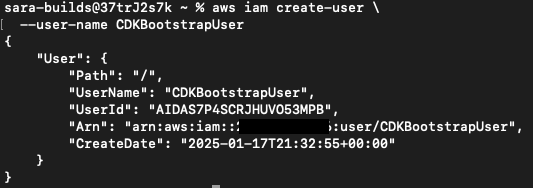
AWS CLI – Create the IAM User:
aws iam create-user \
  --user-name CDKBootstrapUser
Output:
AWS CLI – Create the IAM Policy:
I create a file bootstrapPolicy.json file in my local directory. It’s doesn’t matter which directory it’s in, you’ll just need to run your AWS CLI commands in that same directory.
I use vim to create and edit the file at once in my current directory:
vim bootstrapPolicy.jsonThe file opens with this command and I hit i, the command for inserting text. Then esc to stop inserting. Then :wq to save the data in the file.
If you don’t use Vim, you create the file any way you like, as long as the outcome has the following policy saved in a file named bootstrapPolicy.json.
IAM Bootstrap Policy:
{
  "Version": "2012-10-17",
  "Statement": [
    {
      "Effect": "Allow",
      "Action": [
        "cloudformation:CreateChangeSet",
        "cloudformation:DescribeChangeSet",
        "cloudformation:DescribeStackEvents",
        "cloudformation:DescribeStacks",
        "cloudformation:ExecuteChangeSet",
        "cloudformation:GetTemplate",
        "cloudformation:DeleteChangeSet",
        "cloudformation:ListStacks"
      ],
      "Resource": [
        "arn:aws:cloudformation:*:*:stack/CDKToolkit/*",
        "arn:aws:cloudformation:*:*:stack/*"
      ]
    },
    {
      "Effect": "Allow",
      "Action": [
        "iam:AttachRolePolicy",
        "iam:CreateRole",
        "iam:GetRole",
        "iam:DeleteRole",
        "iam:GetRolePolicy",
        "iam:DeleteRolePolicy",
        "iam:DetachRolePolicy",
        "iam:TagRole",
        "iam:PutRolePolicy"
      ],
      "Resource": [
        "arn:aws:iam::*:role/cdk*"
      ]
    },
    {
      "Effect": "Allow",
      "Action": [
        "ecr:CreateRepository",
        "ecr:DeleteRepository",
        "ecr:PutLifecyclePolicy",
        "ecr:SetRepositoryPolicy",
        "ecr:DescribeRepositories"
      ],
      "Resource": [
        "arn:aws:ecr:*:*:repository/cdk-*"
      ]
    },
    {
      "Effect": "Allow",
      "Action": [
        "ssm:PutParameter",
        "ssm:GetParameters"
      ],
      "Resource": [
        "arn:aws:ssm:*:*:parameter/cdk-bootstrap/*"
      ]
    },
    {
      "Effect": "Allow",
      "Action": [
        "s3:PutBucketPublicAccessBlock",
        "s3:CreateBucket",
        "s3:PutEncryptionConfiguration",
        "s3:PutBucketPolicy",
        "s3:PutBucketVersioning",
        "s3:PutLifecycleConfiguration",
        "s3:DeleteBucketPolicy"
      ],
      "Resource": [
        "arn:aws:s3:::cdk-*"
      ]
    }
  ]
}
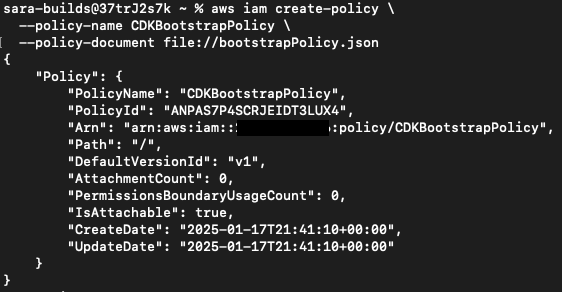
Then create the IAM Policy using that json file.
aws iam create-policy \
  --policy-name CDKBootstrapPolicy \
  --policy-document file://bootstrapPolicy.json
Output:
AWS CLI — Attach the Policy to the User:
aws iam attach-user-policy \
  --policy-arn arn:aws:iam::{account_number}:policy/CDKBootstrapPolicy \
  --user-name CDKBootstrapUser
Output:

Step 2 – Create your IAM User and IAM Policy for CDK Deployments
Now we can create the User we will use for our general development and deployments. You’ll likely have to add additional permissions to this User depending on the different resources you’re working with. For example, s3:createbucket.
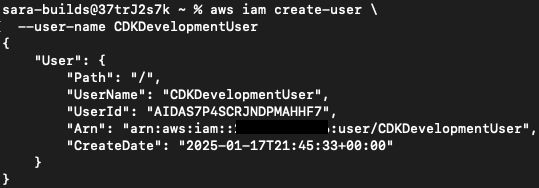
AWS CLI – Create the IAM User
aws iam create-user \
  --user-name CDKDevelopmentUser
Output:
AWS CLI – Create the IAM Policy:
I create a file cdkDevPolicy.json file in my local directory. It’s doesn’t matter which directory it’s in, you’ll just need to run your AWS CLI commands in that same directory.
I use vim to create and edit the file at once in my current directory:
vim cdkDevPolicy.jsonThe file opens with this command and I hit i, the command for inserting text. Then esc to stop inserting. Then :wq to save the data in the file.
IAM Deployment Policy:
{
  "Version": "2012-10-17",
  "Statement": [
    {
      "Sid": "cdkDeploySsm",
      "Effect": "Allow",
      "Action": [
        "ssm:GetParameter"
      ],
      "Resource": [
        "arn:aws:ssm:*:*:parameter/cdk-bootstrap/*"
      ]
    },
    {
      "Sid": "cdkDeploySts",
      "Effect": "Allow",
      "Action": [
        "sts:AssumeRole"
      ],
      "Resource": [
        "arn:aws:iam::*:role/cdk-*"
      ]
    }
  ]
}
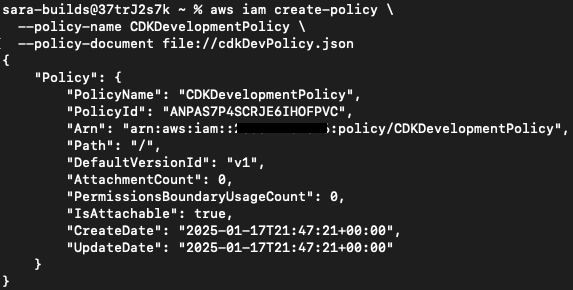
Then create the policy using that json file.
aws iam create-policy \
  --policy-name CDKDevelopmentPolicy \
  --policy-document file://cdkDevPolicy.json
Output:
AWS CLI – Attach the Policy to the User
aws iam attach-user-policy \
  --policy-arn arn:aws:iam::{account_number}:policy/CDKDevelopmentPolicy \
  --user-name CDKDevelopmentUser
Note: I’ve found that it may take a minute or so to see these changes in your account.
Output:

Step 3 – Get the Access Key For Your IAM User used for CDK Bootstraping
You can reference my article Seamlessly Secure: Configuring AWS CLI and CDK CLI Credentials on how to do this.
The end result of this step is that we want to create the Access Key for the IAM User we created named “CDKBootstrapUser” and use that key in our local workspace that we want to run the cdk bootstrap command in.
Step 4 – Try Running the CDK Bootstrap command and Debug, if Necessary
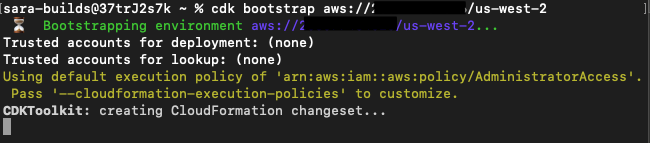
Execute the cdk bootstrap command in your terminal using your account and region.
cdk bootstrap aws://{account_number}/{region}Example:
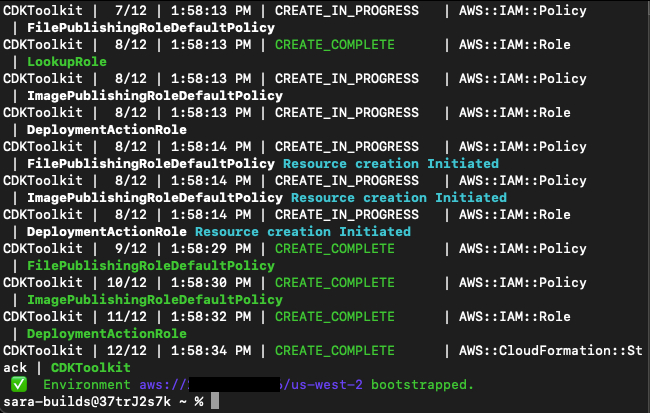
cdk bootstrap aws://123456789012/us-west-2If you go into the AWS Console in your browser for this account and region, you’ll see a stack being created called CDKToolkit.
Terminal Output:
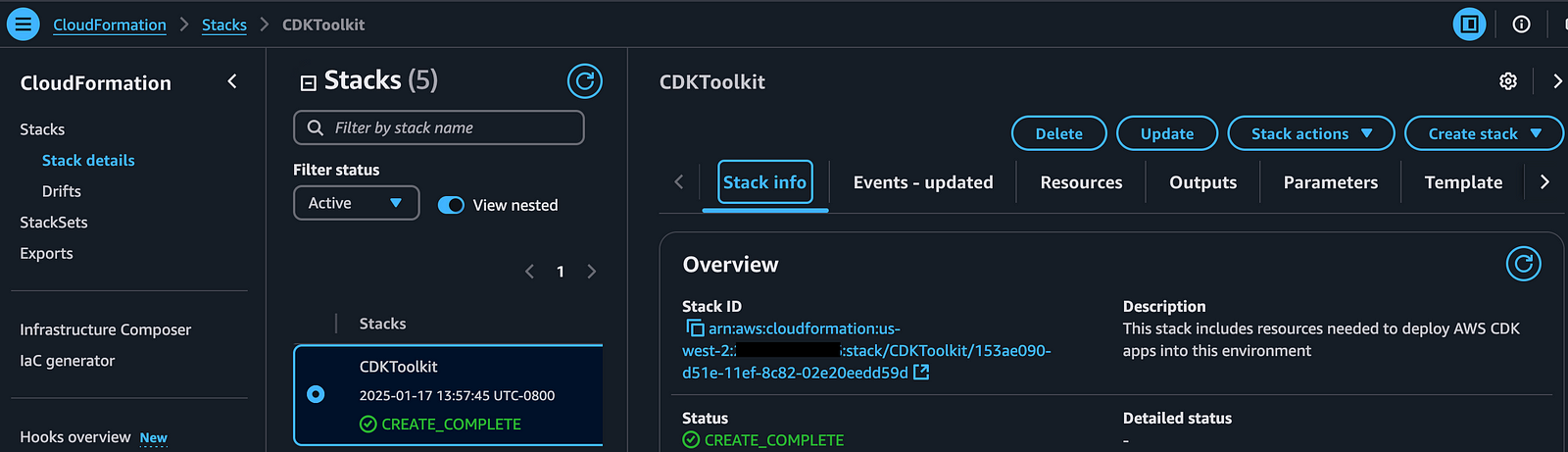
CloudFormation Stack:
If you look in the AWS console in your browser under CloudFormation, you’ll see the CDKToolkit stack you just created. You’ll be able to see the resources such as IAM Policies and Roles that were created under the Resources tab.
Debugging When CDKToolkit Stack Fails to Create
If there is an an issue with any permissions, you can find this either by looking at the output of the command in your terminal, or by looking at the Event Details in the CloudFormation Stack creation.

If you are missing a permission, such as iam:CreateRole like in the screenshot above, you can update the IAM Policy for the user to allow that permission.
Once you’ve included the new permission in the Policy, you can try to run the bootstrap command again.
Step 5 – Switch To Using the CDK Development IAM User for Deployments
Now that you’ve successfully bootstrapped your environment, you can now switch to using the IAM User named “CDKDevelopmentUser” in your local workspace.
To do this, you need to get the Access Key for this user in the same way we did for the CDKBootstrapUser. Again, you can reference my article Seamlessly Secure: Configuring AWS CLI and CDK CLI Credentials on how to do this.
Depending on what AWS resources you’re deploying, you may need to add additional permissions to this user’s policy.
….
Thanks for reading!
 Luicd Tech Hub